
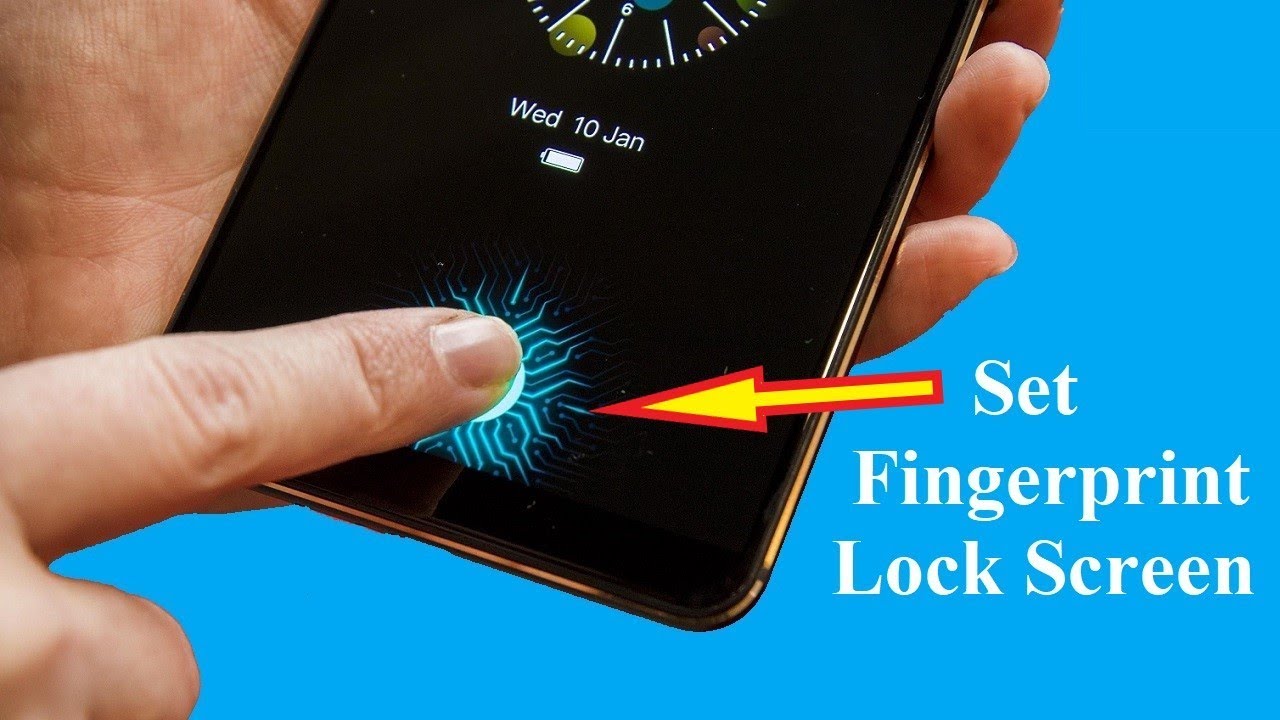
In 2026, smartphone privacy and accidental touch prevention have become more important than ever. Whether you’re watching videos, giving your phone to kids, or avoiding accidental taps, a Touch Lock Screen feature can be incredibly useful.
This detailed guide will show you how to add a touch lock screen on any Android phone, even if your device doesn’t support it natively.
 What is Touch Lock Screen?
A Touch Lock Screen disables all touch inputs on your phone while keeping the screen active. This means:
- No accidental taps while watching videos
- Kids can’t exit apps
- Screen stays on but locked from interaction
 Method 1: Use Third-Party Apps (Best & Easy Way)
Most Android phones don’t have built-in touch lock features, so apps are the easiest solution.
 Step-by-Step Guide:
- Open Google Play Store
- Search for:
- Touch Lock App
- Screen Lock Touch Blocker
- Touch Protector
- Install a trusted app (recommended features below)
- Open the app and grant required permissions:
- Accessibility permission
- Display over other apps
- Activate the touch lock feature
- Use shortcut (floating button / notification toggle)
 Best Features to Look For:
- One-tap lock/unlock
- PIN or gesture unlock
- Volume button unlock option
- No ads (or minimal ads)
- Lightweight & battery efficient
 Method 2: Built-in Screen Pinning (Alternative Option)
Android has a hidden feature called Screen Pinning that can act like a touch lock.
How to Enable:
- Go to Settings
- Tap Security & Privacy
- Find Screen Pinning
- Turn it ON
How to Use:
- Open any app (e.g., YouTube)
- Tap Recent Apps
- Tap the Pin icon
- Now the app is locked
 To exit: Hold Back + Recent buttons
 Method 3: Use Guided Access Apps (Advanced)
Some apps simulate iPhone-style guided access:
- Lock specific areas of screen
- Disable navigation buttons
- Prevent app switching
Search in Play Store:
- “Guided Access Android”
- “App Lock Touch Control”
 Method 4: OEM Features (If Available)
Some brands include touch lock options:
- Samsung (One UI) – Kids Mode / Touch Block
- Xiaomi (MIUI) – Video Toolbox touch lock
- Realme / Oppo – Smart Sidebar tools
Check:
Settings → Special Features → Screen Tools
 Pro Tips for Better Experience
- Use apps with volume button unlock (faster)
- Disable battery optimization for smooth performance
- Use with YouTube / Netflix for uninterrupted watching
- Always set a backup unlock method (PIN or pattern)
 Important Safety Tips
- Don’t forget your unlock method
- Avoid unknown apps (security risk)
- Check app permissions carefully
